« October 2005 | Main | December 2005 »
November 24, 2005
TOC ICO
If you are interested in the business behind Theory of Constraints, David Anderson has an interesting post on the TOC ICO. Worth reading to see what is going on.
Posted by Jack at 08:54 AM | Comments (0) | TrackBack
November 22, 2005
Aphorisms for the Day
"Every man takes the limits of his own field of vision for the limits of the world" - Schopenhauer
"Joyous distrust is a sign of health. Everything absolute belongs to pathology" - F. Nietzsche
"A thing 'is' whatever it gives us least trouble to think it is. There is no other 'is' than this" - Samuel Butler
Posted by Jack at 10:49 AM | Comments (0) | TrackBack
November 21, 2005
PM Aphorisms and a house built of straw
I've written before that project management types like aphorisms and numbered lists. It continues to be true. Part of the appeal is that aphorisms come with an assumption that they are universally true. As W. H. Auden stated:
"The aphorist does not argue or explain, he asserts; and implicit in his assertion is a conviction that he is wiser or more intelligent than his readers"
Thus, implicit in the form (and in the repetition and citing of others) is a false confidence that what is stated in aphoristic form is true. Being concise and compact, aphorisms leave few openings for attack. Politicians have perfected this in the modern "soundbite". As an aside, I'm somewhat annoyed that project management aphorisms are rather boring. We don't see things like:
"Man is an exception, whatever else he is. If it is not true that a divine being fell, then we can only say that one of the animals went entirely off its head" - Gilbert Chesterton
Of course not everyone is entirely pleased with sort of overstatement and oversimplification. There are a few out there who like to skewer some of the claims. For example, here Glen Alleman burns down Ron Jeffries strawman of "waterfall" planning wherein he draws a fuzzy drawing and complains it is fuzzy

As much as I agree with Ron about the benefits of agile planning, a fuzzy drawing is very nearly an attempt at a visual aphorism but is missing the the foundation. He draws the effect but does not draw the cause, leaving us to leap to the assumption that waterfall planning is the universal and sole cause for such miserable and demoralizing execution. Likewise, David Anderson claims he is "doing science" but is missing nearly half of what real science is. Here is what he says::
"What does it mean - "Management science for software engineering"? Why do I say that on this site? I'm not making it up. What are we saying when we say we are doing science? Science is the idea that we can predict the outcome of events given our understanding of how things work. Our understanding is typically expressed using a model. Sometimes those models are expressed as mathematical equations but often times they are simple models or sets of rules or abstractions that appear to be true for a given problem domain."
Of course this is not particularly true. What I'd pose as the "classical" definition of "doing science" is the coupling of experimental observation WITH Rene Descartes' "Systematic Doubt" wherein everything is presumed false until proven true. What is missing from David's "science" is the controlled experiment. The attempt to prove his idea false. Until then it is still built on a foundation of straw and until there is the attempt to disprove he won't have the feelings that Descartes did when he wrote:
"Doubt is thus carried to its extreme form. But notwithstanding this fact, doubt causes to rise in me the most luminous and indisputable certainty"
Science is hard. Science can be expensive. Wrapping yourself in the flag of science is cheap and easy but it does not result in the same sublime reward as doing it the hard way.
Posted by Jack at 08:18 AM | Comments (0) | TrackBack
November 20, 2005
Oops - MS Project Server 2003 Service Pack 2 Recalled
Installing a Microsoft service pack right off the bat has always been a controversial thing, but the recent recall of Project Server SP2 is another black mark in the minus column. Seems it screws up outline codes. Read this knowledgebase article (KB# 909947) for the details.
Posted by Jack at 10:33 PM | Comments (0) | TrackBack
November 18, 2005
The new PMBOK Guide
I'm wondering how much has changed if
One of the most important changes is the criteria for included information, which evolved from “generally accepted on most projects, most of the time” to “generally recognized as good practice on most projects, most of the time.”
Nevertheless, an essential reference if you are going to study for the PMP exam. I'm getting less and less excited about PMI the more I read. Expecially when I read their linking agreement (find it at: www.pmi.org/info/LinkAgreement.asp) which states:
No Negative References. You agree not to make negative or disparaging references to PMI, its services or its members or otherwise compare PMI, its services or its members unfavorably to others.
Hey, maybe I could use those terms and conditions on my site?
Posted by Jack at 08:35 PM | Comments (2) | TrackBack
Formatting Task Links in MS Project
Someone asked if it is possible to hide the dependency lines (links) in Microsoft Project. By going to the format menu and selecting "layout" you can turn them off for all tasks. But there is a workaround for formatting them individually which can hide or highlight links. To do this we rely on the behavior of project to use the first applicable barstyle as the one which controls the link color.
What this means is that if the first barstyle in the list applies to all tasks and is blue, then all the link lines are going to be blue. Since we can layer barstyles we can set the first barstyle to be one color and then overlay it with a different color. The link will take the first color and the task bar will take the color of the later style.
By using the conditional formatting capability of flags we can set this differently for different tasks and thus control the link color on an individual basis.
The first step is to set up some barstyles. In the screenshot you can see that I created white, red and green barstyles BEFORE the default blue barstyle. I use flags to control which tasks these barstyles are used for.
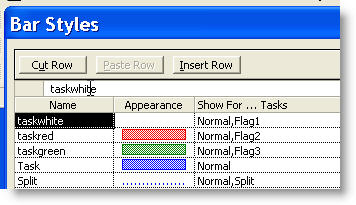
Then we set the flags for the individual tasks. You can see below that the task with Flag1 set to Yes has a white link line with its successors. Likewise with the green and red link lines.
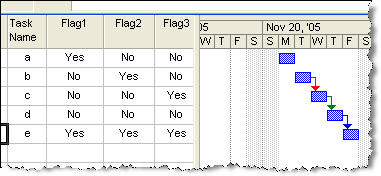
Combining this with a custom field formula to set the value of the flag fields, you can programmatically change the color of the link lines in almost any manner you choose.
Posted by Jack at 03:05 PM | Comments (1) | TrackBack
How to open MS Project from Excel
I have a number of examples of exporting to Excel from MS Project (exporting task hierarchy and exporting monte carlo simulation data) but many people want to do just the opposite. They want to open a Project file from Excel. So here is a short example which shows opening the Project application from excel, creating a new file and adding a task.
The first thing that you need to do is to set a reference to the Microsoft Project Object Library. To do this go to 'the "Tools Menu" in the Visual Basic Editor (hit ALT+F11 to get there from Excel).
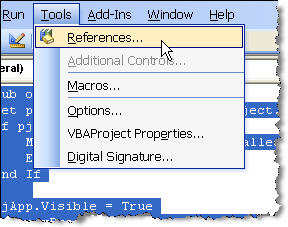
This should bring up a dialog box showing all of the available libraries. You will probably have to scroll down a bit to find the project library. Here you can see that I'm using Project 2002 as it is version 10.
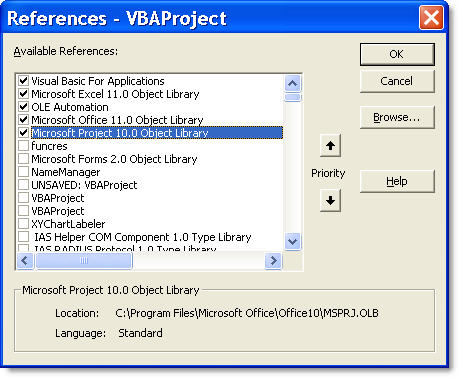
Once you have set the reference the code is pretty simple:
Sub openMSProjectFromExcel()

Set pjApp = CreateObject("MSProject.application")

'this checks to see if a valid object has been created. If not it pops up

'a warning and then quits. Users without Project installed will see this message.

If pjApp Is Nothing Then

    MsgBox "Project is not installed"

    End

End If

'now that we have an application we make it visible

pjApp.Visible = True

'we add a new project
Set newProj = pjApp.Projects.Add

'we set the title property (you can do whatever you want here.

newProj.Title = "My New Project"

'we make the new project the active project

Set ActiveProject = newProj

'and finally we add a new task to the project

newProj.Tasks.Add ("My First Task")

End Sub
Obviously you will want to do more where this leaves off, but it should be enough to get you started with using Project from Excel.
Posted by Jack at 11:39 AM | Comments (0) | TrackBack
November 17, 2005
Microsoft Project Tip - Formulas and the IIF statement
IIF(immediate if) statements are one of the most commonly used functions in ms project formulas. An IIF statement is basically a condensed version of the "If ...Then .. Else" statement which is often used in programming. The iif statement takes three arguments:
IIf( expression, truepart, falsepart )
The first is the expression you want to evaluate. It needs to be constructed so that it has a true or false answer so it is commonly used to compare vs. a particular value. (see this article for comparing with "NA" ). What the iif statement does next is dependent on whether the result is true or false.
If the expression is true then the truepart is returned. This sounds quite simple and can be very simple. You could return something like a text value or a number. However, the power of the iif statement is that the truepart can be another expression, even another iif statement. This allows you to construct and test many parameters in a single formula.
If the expression is false then the falsepart is returned. Like the truepart it can be an expression or set of nested expressions.
The difficult part of constructing a good nested iif statement is to put the tests in the correct order. Once the statement follows a path to the end, any other ends are not evaluated. The second limitation is that custom field formulas are limited to 256 characters so be economical with your text.
The IIF statement is also available in Excel for cell formulas, but in more recent versions of Excel (XP, 2003, perhaps 2000) it is called the If statement with exactly the same syntax.
Posted by Jack at 01:04 PM | Comments (1) | TrackBack
All around the world tonight
It seems that they are reading this blog. I was surprised to see that more than half of the hits to the blog are from Europe and Asia. The following map from Google Analytics shows where you are all from.
Welcome Everyone!

Posted by Jack at 07:40 AM | Comments (1) | TrackBack
November 15, 2005
Government Issue and Free
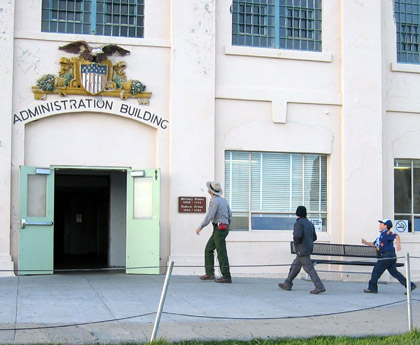
From the front door Alcatraz doesn't look too forbidding. Because the entrance is up above the original level of the fortress and enters the prison at the second floor it almost looks a bit like a post office or other governmental building. Looking closer, you can find one of the indications of the American Indian Movement occupation of the island. The red stripes under the eagle have been modified to read "FREE".

In my mind the Indian occupation is perhaps more important than Alcatraz's days as a prison, but it doesn't capture the imagination of hollywood to the same extent as a prison break.
Posted by Jack at 09:31 PM | Comments (0) | TrackBack
November 14, 2005
To and Fro ...

Alcatraz Island is part of the GGNRA (Golden Gate National Recreation Area), which at more than 75,000 acres is one of the largest urban parks in the world. Alcatraz itself is only a small part of this, but due to the location in the middle of San Francisco Bay it is one of the most visible sites.
The only way to get to the island is by a short ferry ride from San Francisco. It is a bit more than a mile offshore and as a result it offers one of the best views of the city at night that I've ever seen.

Posted by Jack at 09:25 PM | Comments (0) | TrackBack
Escape
I spent Saturday night on Alcatraz.
It seemed smaller than I thought it was and for a while, with the run of the island it (and some beautiful weather for mid-November) it seemed almost a fun place, but after a while the never ending bars put you in a mood to escape to outside and a walk around the now ruined gardens. I'll post more pictures and notes in the next few days.
Posted by Jack at 09:01 PM | Comments (0) | TrackBack
Waiting for Google
I used to think that Yahoo and MSN liked me more than Google. Of course it was true. Just look at the first 2 months of this chart showing how many visitors to my site were referred by the big 3 search engines:
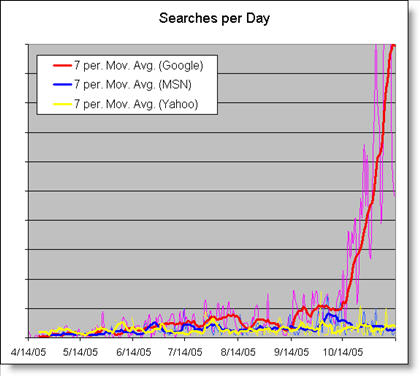
After a magic 6 months (almost to the day) things changed. Now Google thinks I'm great and the other search engines continue nearly unchanged. The message for anyone seeking to optimize their site and get google traffic is to be patient. It looks like your rankings increase if you can make it through the first 6 months. Of course, the timing could just be coincidence but it is clear that something changed.
Posted by Jack at 08:03 AM | Comments (1) | TrackBack
November 11, 2005
MS Project VBA Programming - Writing project properties to a file
Microsoft Project files have a couple of different types of properties. The first are the "BuiltinDocumentProperties" which Project inherits from the Office Suite (Word, Excel, Access ...). These properties describe things like author, title, subject, creation date and the like. The second are the CustomDocumentProperties which are specific to Project. You can also create your own custom properties as well. The custom properties can be used to report cost, duration, start and finish dates of the project and a multitude of other interesting items.
One problem that this causes is that it can sometimes be difficult to know what properties are being used in a specific file. To report them out and to give a simple example of writing to a text file I put together a macro which loops through all of them and writes them to a file. Even if you are not interested in the project properties this example illustrates some of the more commonly required programming techniques. I'll walk through the code with some comments and then offer the whole thing at the end if you want to cut and paste.
Sub writemyproperties2()


Dim MyString as String

Dim MyFile As String

Dim fnum as Integer

Dim myIndex As Integer

Dim myProj As Project

Dim skipme As Boolean

skipme = False

Set myProj = ActiveProject
Declaring the variables is optional in Project VBA, but it can help prevent some problems later. If a variable isn't defined then Project treats it as a "variant" which it needs to allocate more memory for. Project also makes some assumptions about how to treat a variant in different circumstances. In most cases it assumes correctly, but there is always the chance that it may make the wrong assumption so it is good practice to be explicit about your variables. Following this we set the initial values for some of the variables.
The next step is to set up a file to write to. The next bit of code sets the file name and then uses the FreeFile() method to create a file. We open the file to write to it. We choose to open the file "for output". This allows us to write to it. The other possible modes are "for input" which would allow us to read data from the file and "for append" which appends data to the file. This last mode is useful for logs.
MyFile = "c:\" & ActiveProject.Name & "_properties.txt"

fnum = FreeFile()

Open MyFile For Output As fnum
Once we have created and opened the file we can write to it.
In the "for output mode we do this with a "Write" statement. First we write a line as a header and then a blank line. Each "write" statement creates a new line. The comma is required.
Write #fnum, "Built In Properties"

Write #fnum,
Now we use a "For...Next" loop to go through all the properties. Because there are some gaps in the numbering of the properties, the macro would fail when it hits gaps in the sequence. We solve this by putting in an error handler. When the code errors then it goes to the code which we want to execute "On Error"
For myIndex = 1 To myProj.BuiltinDocumentProperties.Count

skipMe = False

On Error GoTo ErrorHandler

MyString = (myIndex & _

    ": " & _

    myProj.BuiltinDocumentProperties(myIndex).Name & _

    ":  " & _

    myProj.BuiltinDocumentProperties(myIndex).Value)

    If skipMe = False Then

        Write #fnum, MyString

    End If

Next myIndex
You can see that each loop through will write the property number, the name and the value of the property. You may be wondering why the if...then" statement is there. I include it because of the way the errors are handled. Our error code is very simple. It just resumes on the next statement. Since the next statement writes a line to the file it would result in re-writing the previous property again, so we add a line to the error handler which sets skipMe to true and then we do not write the property.
From here the code for the custom document properties is the same.
Write #fnum, "-----------------------------------------------"

Write #fnum,

Write #fnum, "Custom Properties"

Write #fnum,

For myIndex = 1 To myProj.CustomDocumentProperties.Count

skipMe = False

On Error GoTo ErrorHandler

    MyString = (myIndex & _

    ": " & _

    myProj.CustomDocumentProperties(myIndex).Name & _

    ":  " & _

    myProj.CustomDocumentProperties(myIndex).Value)

    If skipMe = False Then

    Write #fnum, MyString

    End If

Next myIndex
We need to close the file after this.
Close #fnum
And finally we have the code to handle errors and end the procedure.
ErrorHandler:

skipMe = True

Resume Next


End Sub
Here is the complete macro to cut and paste
Sub writemyproperties2()

'This macro exports all the built-in and custom project properties

'to a text file. It lists the index of the property, the name and the value.

'It demonstrates the use of a simple error handler to skip the errors that

'occur when a property is not defined or used.


'Copyright Jack Dahlgren, Nov 2005


Dim MyString as String

Dim MyFile As String

Dim fnum as Integer

Dim myIndex As Integer

Dim myProj As Project

Dim skipme As Boolean


Set myProj = ActiveProject

skipMe = False


'set location and name of file to be written

MyFile = "c:\" & ActiveProject.Name & "_2properties.txt"

'set and open file for output

fnum = FreeFile()

Open MyFile For Output As fnum

'write project info and then a blank line

Write #fnum, "Built In Properties"

Write #fnum,


For myIndex = 1 To myProj.BuiltinDocumentProperties.Count

skipMe = False

On Error GoTo ErrorHandler

MyString = (myIndex & _

    ": " & _

    myProj.BuiltinDocumentProperties(myIndex).Name & _

    ":  " & _

    myProj.BuiltinDocumentProperties(myIndex).Value)

    If skipMe = False Then

        Write #fnum, MyString

    End If

Next myIndex

Write #fnum, "-----------------------------------------------"

Write #fnum,

Write #fnum, "Custom Properties"

Write #fnum,


For myIndex = 1 To myProj.CustomDocumentProperties.Count

skipMe = False

On Error GoTo ErrorHandler

    MyString = (myIndex & _

    ": " & _

    myProj.CustomDocumentProperties(myIndex).Name & _

    ":  " & _

    myProj.CustomDocumentProperties(myIndex).Value)

    If skipMe = False Then

    Write #fnum, MyString

    End If

Next myIndex

Close #fnum


ErrorHandler:

skipMe = True

Resume Next


End Sub
Posted by Jack at 08:29 AM | Comments (0) | TrackBack
November 10, 2005
Free PMBOK Download - This nonsense thing
For some reason my article on why there is no "free PMBOK Download" gets the most irate comments. Most of them I can't publish, and the rest of them claim I am full of nonsense. I guess people don't like to be told that something does not exist. Next up on my list: "The Easter Bunny".
Posted by Jack at 10:33 AM | Comments (1) | TrackBack
November 08, 2005
Working With Microsoft Project Events - On Open
Working With Events
Often one wants Project to do something when something changes in the project
file. An example of this is having some sort of macro run when the project is
opened or when it is saved. Project offers a number of Project events which
allow this. They include:
- Project_Open (which acts like the On_Open event you may be familiar with),
- Activate,
- BeforeClose,
- BeforeSave,
- Calculate,
- Change,
- Deactivate
These events apply to the project and are fairly simple to implement. There are also a number of application level events which allow you to specify actions based on changes in individual fields. They are somewhat more difficult to implement, but if you can follow the example below you will have no problems.
The list of application events includes:- ProjectAfterSave, ProjectAssignmentNew,
- ProjectBeforeAssignmentChange, ProjectBeforeAssignmentChange2,
- ProjectBeforeAssignmentDelete, ProjectBeforeAssignmentDelete2,
- ProjectBeforeAssignmentNew, ProjectBeforeAssignmentNew2,
- ProjectBeforeClearBaseline,
- ProjectBeforeClose, ProjectBeforeClose2,
- ProjectBeforePrint, ProjectBeforePrint2,
- ProjectBeforeResourceChange, ProjectBeforeResourceChange2,
- ProjectBeforeResourceDelete, ProjectBeforeResourceDelete2,
- ProjectBeforeResourceNew, ProjectBeforeResourceNew2,
- ProjectBeforeSave, ProjectBeforeSave2,
- ProjectBeforeSaveBaseline,
- ProjectBeforeTaskChange, ProjectBeforeTaskChange2,
- ProjectBeforeTaskDelete, ProjectBeforeTaskDelete2,
- ProjectBeforeTaskNew, ProjectBeforeTaskNew2,
- ProjectCalculate,
- ProjectResourceNew,
- ProjectTaskNew,
- NewProject,
- LoadWebPage,
- ApplicationBeforeClose.
Using a Project Event
This is the simplest form of event.
Open your project file. Hit the ALT+F11 keys to open the visual basic editor. In the upper left you will see a window with a typical windows tree view.
Click on the + signs until the project it expanded and you see the "ThisProject" object. It should look like the diagram on the right, although with a different project name.
Double-clicking on that item will bring up a code window. In that window you can paste the following:
Private Sub Project_Open(ByVal pj As Project)

MsgBox "Project Just Opened"

End Sub

Application Events:
The example above only requires pasting some code in a single place. However using application events requires a few more steps.
The first step is to create a new class module and declare an object of type Application with events.
Creating the class module is done by going to the insert menu and selecting "ClassModule" as shown here:

When you have done this, double click on the class module and declare the object by using the following code:
Public WithEvents App As Application


Public WithEvents App As Application


Private Sub App_ProjectBeforeTaskChange(ByVal t As Task, _

        ByVal Field As PjField, _

        ByVal NewVal As Variant, _

        Cancel As Boolean)


If Field = pjTaskName And NewVal = "foo" Then

    MsgBox ("you can not change the name to foo")

    MsgBox ("The old name was " & t.Name)

    Cancel = True

End If
"App") in the class module with the Application object. It sounds complicated, but it is really rather simple. First we declare a new object based on the class module. In this case our class module is named
TEvent. Code to do this would be something like:
Dim X As New TEvent
Now that we have this object we need to initialize it. Basically we need to tell it what the "App" is.
We do this with the following code:
Set X.App = Application
Most of the time you will want to do the initalization when your project opens so the events will work from the start, but you can put this information in any typical module which holds some of your macros.
The screenshot below shows what it would look like if we want it to initialize when the project file opens.

Posted by Jack at 11:15 AM | Comments (1) | TrackBack
November 05, 2005
A different pair of eyes
As you are probably aware from the potential of microwaves to cause your cup of coffee to boil over, the universe is filled with electromagnetic waves which are largely invisible to us. Sometimes they reveal quite interesting things. The "Cool Cosmos" site shows a number of photos of the sun and moon using different wavelengths in the electromagnetic spectrum. The xray photo's of the sun look like it has spent a few too many minutes in the microwave and is starting to explode.
Oh, and by the way, on a clear night Mars is shining brightly right now. Apparently it is as close to the Earth as it is going to be for many years.
Posted by Jack at 12:27 AM | Comments (1) | TrackBack
Wrong Sturgeon
I previously stated that Theodore Sturgeon stated that "80% of everything is crap". I was wrong in both directions. The correct statement (with some context surrounding it) is:
"It is in this vein that I repeat Sturgeon's Revelation, which was wrung out of me after twenty years of wearying defense of science fiction against the attacks of people who used the worst examples of the field for ammunition, and whose conclusion was that ninety percent of SF is crud. The Revelation: Ninety percent of everything is crud."*
Ah well, at least I was 90% right.
(* source: http://www.jessesword.com/sf/view/328)
Posted by Jack at 12:20 AM | Comments (0) | TrackBack
November 02, 2005
More about Project Management Aphorisms
Bob Ashley has a nice ran^H^H^Hcomment on Project Management aphorisms here. I'll leave out the part about dying flowers, Tom Peters, Marshall Goldsmith and fantasy fulfilment and just choose this part:
In conclusion, I think we're enthralled with the aphoristic "form", but repeatedly mistake it for "content".
Rather well said if you ask me.
Posted by Jack at 09:27 PM | Comments (0) | TrackBack
The evil that men do
Seems that Google's gmail now has a "Rich text" mode.

This is cause for dismay for those of us who believe email should be plain text only but I suppose that eventually every company succumbs to the same siren song of more features.
Posted by Jack at 09:54 AM | Comments (0) | TrackBack
