« November 2005 | Main | January 2006 »
December 10, 2005
Ginkgo Biloba in Fall
Usually around now the leaves should be on the ground, but it has been a dry Autumn so nothing has knocked them loose yet. When they do fall they form a yellow carpet on the ground. Yes, the leaves really are that yellow.

Ginkgo's are the sole living link between ancient plants like ferns and more modern trees like conifers. The simple leaves and the conifer-like buds are an indication of this. Leaves from modern trees match those of fossils millions of years old. The gingko tree itself has a long life too, with reports of trees up to a few thousand years old.
You can read more about ginkgo's at Cor Kwant's "Ginkgo Pages"
Posted by Jack at 08:27 PM | Comments (0) | TrackBack
December 07, 2005
More about working with the tasks collection
I've mentioned before that when looping through a collection of tasks in Project that there are a couple of holes you can fall in. This note gives an example of another problem you might run into and describes how to combine tests. The first problem is encountering a blank line. Many people insert blank lines in their project files to make the table easier to read, however when project references a task which is blank it will give an error. The easy way to do this is to test for it with an if .. then statement.
If your original code was something like this:
Sub AllTasksLoop()

For Each Task In ActiveProject.Tasks

'do something

Next Task

End Sub
You would simply add a test to see if the task really exists.
Sub AllNonBlankTasks()

For Each Task In ActiveProject.Tasks

If Not Task Is Nothing Then

'do something

End If

Next Task

End Sub
Another thing you might want to do is to eliminate external tasks. These are a sort of "ghost" task and don't have all of the information or properties of a real task. They merely point to the project file which has the real task. We can filter them in a similar way.
Sub AllNonBlankInternalTasks()

For Each Task In ActiveProject.Tasks

If Not Task Is Nothing Then

If Not Task.ExternalTask Then

'do something

End If

End If

Next Task

End Sub
Now, you might think, "Why do I need two if statements? Can't I combine them?
, but you can't. If the task is a blank task, then it will cause an error when it is checking the second condition. Blank tasks do not have the .ExternalTask property so the check for blank tasks always must come first on its own line. You CAN combine checks for summary tasks on the same line as for external tasks. This is commonly done when you are summing values from tasks. Since the summary task often has the sum of the tasks below it, summing and including it will give you an incorrect answer. Combining the two conditions with a booleanOR will do the trick.
Sub AllNonBlankInternalIndividualTasks()

For Each Task In ActiveProject.Tasks

If Not Task Is Nothing Then

If Not (Task.ExternalTask Or Task.Summary) Then

MsgBox Task.Name

End If

End If

Next Task

End Sub
Posted by Jack at 09:53 AM | Comments (3) | TrackBack
Oh so special!
I got an email today from a "web 2.0" company/thing. I'm not sure what it is that is so annoying about it. The false exclusivity, the permission to blog about it (and the implicit suggestion that you do) or the fake name of the "senior director of community development". Is the world really half full of propaganda or is it half empty? Anyway, here is the note. I've cut off any indentifying labels.
You may notice something special about *doo today.
We have quietly — and completely — moved out of the closed beta test... and into a public beta.
That means that anyone can visit *doo, find lenses, claim lenses, and build their own. We're thrilled to open our doors to the public, and to let everyone use the platform that you've been helping us test and improve these last few weeks.
But we're not going to tell anyone yet.
Except you.
So, now's the time for you to share what you've been working on during the secret beta test. Email your lenses to friends. Post a lens to your blog. Tell your mom. And, for a limited time, your friends will be the only people to know that *doo is finally live.
Thanks for working with us over the past two months. We can't wait to see how the general public responds to what you’ve been building!
Ready. Set. *doo.
Heath Row
Senior Director of Community Development
*doo
P.S.: Yes, it's OK to blog about this.
"Secret beta", gack!
Posted by Jack at 09:41 AM | Comments (0) | TrackBack
December 06, 2005
Elvis Costello
While he unfortunately degraded into a near self-parody in his middle years it is hard not to hit the replay button when "Less than Zero" or "I Want You" comes up. The first about notable British Fascist Oswald Mosley and the other a dittly about dark obsession. They pretty much bound my collection of his music. I gave up on him after the release of "Blood and Chocolate" in 1986.
Posted by Jack at 02:39 PM | Comments (0) | TrackBack
Management Theory by Google
For some reason Google has decided that the best image of management theories is my picture of abalone and sea urchins:
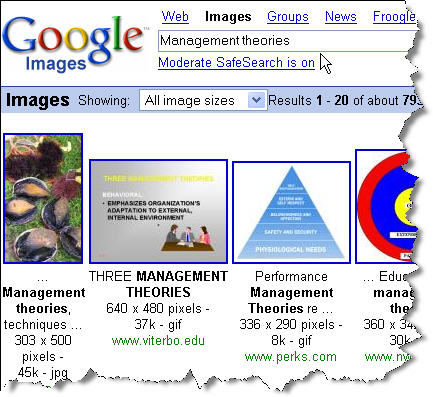
Now, given enough time I could construct an appropriate analogy featuring things such as diving deep in cold water, holding your breath and prying the poor creatures off of their comfortable rocks with a thick steel bar, not to mention chopping them up and eating them, but the fact that google can already make the connection between those activities and Management theories is just amazing.
Posted by Jack at 01:50 PM | Comments (0) | TrackBack
December 05, 2005
MS Project Tip - Creating User-defined Filters
One of the most common activities with large schedule files is filtering them down to show the most important tasks. In most cases, important means immediate and many industries (the construction industry for example) a 3-week look ahead schedule showing current and upcoming activities is very common.
Project's built-in filters allow you to filter based on a date range, but the date range filter asks for user input and you need to select the time periods. There is no way to easily automate this in VBA short of recreating and applying the filter, but in the more recent versions of project there is a very simple way to do this by using a custom field formula.
I've described how to set up custom field formulas before. (Please click the link and read about them if you are new to the topic). For filtering purposes, the simplest way is to use a Flag field. Flag fields have a value of either "Yes" or "No". You can set them manually, but here we are going to use a formula. The formula I am showing performs a few simple tests. First it checks for all tasks that begin before a date three weeks in the future. Then it removes any which are already complete. Of these tasks it selects all of those which are not finished yet. If the task meets those criteria, the field is marked "Yes". If it doesn't then the field remains as "No". Here is the formula:
IIf(([Start]<(Now()+21) And ([% Complete]<100)) And ([Finish]>Now()),"Yes","No")
If you paste this formula into a flag field (for example Flag1) then all you need to do is create a filter which shows any tasks for which Flag1 is "Yes". Note that the formula as written doesn't show any incomplete tasks which are supposed to be completed in the past. Theoretically if you have an updated schedule you won't have any tasks like that, but you can modify the logic to add that condition. Using this technique you should be able to get around almost any interactive filtering challenge.
Posted by Jack at 12:02 PM | Comments (0) | TrackBack
December 02, 2005
Excel Keyboard Shortcuts for date and time
If you are doing any formulas or VBA programming in excel, you probably know about the now() function which returns the current date and time. The problem with Now() is that it is always changing so often it is easier to simply enter the date you want to use. I used to just use the formula =now() and then cut and paste special.
Fortunately there is a simple keyboard shortcut for doing this which you can use to insert the date and time anywhere you want (even within text).
To insert the current date hold down the CTRL key and then type a semicolon ; (CTRL+;)
To insert the current time hold down the CTRL key and then type a colon : (CTRL+Shift+:)
The correct date and time values will be inserted in the cell you are typing in.
Posted by Jack at 04:26 PM | Comments (0) | TrackBack
Build your own "Ugliest Motorcycle"
The ratbike forum will give you plenty of inspiration. Any color as long as it is black or primer grey.
Pass the rattlecan.
Posted by Jack at 03:54 PM | Comments (0) | TrackBack
