Main

Programming Archives

April 12, 2005

Working with the Tasks Collection

The First in a Series of Short Notes About Using Project VBA
The tasks collection is simply a collection of all the tasks in a project. It is the starting point for most Visual Basic programming exercises so it is important to know how to use it. The first thing is in how to set it. This is done using the Set keyword.
Typically one sets a collection to all the tasks in the project, but it is possible to set it to some other task collection.

Here is an example of setting it to the tasks in the active project:

Dim ts as Tasks
Set ts = ActiveProject.Tasks

Another useful trick is to filter the project first and then set the task collection to the set of filtered tasks:

SelectAll
Set ts = ActiveSelection.Tasks

Once we have the task collection we can go through it in a number of ways. If we want a specific task we can ask for it by index. For example if we want the first task the code would be:

Dim t as task
Set t = ts(1)

Quite often we want to do something to all tasks in the project. In that case we would set the task collection as above and then loop through it using a for..next structure:

For Each t in ts
t.Text5 = "Foo"
Next t

This approach works until you hit a blank line in the project. In the case of the blank line the task is what Project refers to as "Nothing". You can do nothing with Nothing, so setting the Text5 value for Nothing will give you an error. Luckily you can check to see if a task is Nothing and therefore skip doing anything that would cause an error and stop your code. To do this we add a simple If statement:

For Each t in ts
If not t is Nothing then
t.Text5 = "Foo"
End If
Next t

We can do a similar thing to ignore summary tasks. You might want to do this when altering a value like duration which is not something that you can edit directly for a summary task. I use something like this:

If not t.Summary Then
'do stuff
End If

Putting it all together we have this generic structure to loop through all tasks in a project:

Dim ts as Tasks
Dim t as Task
Set ts = ActiveProject.Tasks
For Each t in ts
If Not t is Nothing Then
If Not t.Summary Then
'do something
End If
End If
Next t

By putting your code in the middle of this structure (where it says "do something" you can be sure it will be applied to all the regular tasks in the project and won't generate an error when it hits a blank line.

April 13, 2005

Working with the Project Object

The Second in a Series of Short Notes About Using Project VBA

Using a Project object of some kind is essential to programming Project. Like the Task object, it is also a member of a collection, in this case it is part of the Projects collection. Although the Projects collection is under the Application it is what Microsoft calls a "top-level object" meaning that you can use it without needing to specify the Application. This means both of the following are equivalent within Project (though if you are controlling project from another application you will want to specify the application just to be clear):

Application.Projects
is the same as:
Projects

The Project object I use most often is the ActiveProject. ActiveProject is simply the project you are currently working on in project. If you have multiple projects open then it is the one which is in front and which has the cursor active in it. Most of the time you want your code to operate on the ActiveProject and not some other project so code typically looks like this:

Set ts as ActiveProject.Tasks

There are cases where you DO want to work on all the projects that are open. In this case you would forgo using ActiveProject and refer to them individually. You can use For..Next to go through all of the open projects:

For Each Project In Application.Projects
'run subprocedure
Next Project

The Project object can refer to any project and you can define as many as you like. This can be useful when you want to compare a project which is open with another.

Dim proj1 as Project
Dim proj2 As Project
Set proj1 = ActiveProject
Set proj2 = FileOpen("c:\myfilename.mpp")
If proj2.Tasks(5).Finish = proj1.Tasks(5).Finish Then
msgbox "Task 5 is unchanged."
End if
End Sub

You can use an index to refer to a specific project, though the index of the project is dependent on the order in which the files were opened, so there is room for some surprises here:

Set proj1 = Application.Projects(1)
Set proj2 = Application.Projects(2)

There is another interesting type of Project and that is the SubProject. Subprojects are any projects inserted in a "Master" project. Sometimes it is necessary to go through them as well. An example is setting a particular view or modifying some information which can not be done in the "Master" view.

Dim subproj As Subproject
Dim myproj As Project
'go through all the subprojects in the file
For Each subproj In ActiveProject.Subprojects
'open them all in turn
FileOpen (subproj.Path)
Set myproj = ActiveProject
'when open do something to the file
FileClose
Next subproj

The Projects collection has a small number of properties including count, parent and item. It also has a method to add a project. Project and SubProject have too many properties to describe here, but eventually I'll get around to covering some of the more interesting ones.

April 18, 2005

Working with Other Applications

The Third in a Series of Short Notes About Using Project VBA

Project is designed primarily for calculating schedules using the Critical Path Method (CPM). However, there are often times you need to do more advanced calculations than are available natively in Project. The easiest solution is to turn to another application to do the calculations or to work with the resulting data.

An example of this is the use of Excel. It is actually quite simple to do this. The first thing to do is to set a reference to Excel. You do this by:

Opening Project.
Hit ALT+F11 to open the Visual Basic Editor.
From the Tools menu select "References".
Scroll down until you see the Microsoft Excel Object Library (or something similar).
Make sure the box next to it is checked.

Once that is complete you simply create a new instance of Excel and add a worksheet if necessary.

If xlApp Is Nothing Then
'Start new instance
Set xlApp = CreateObject("Excel.Application")
If xlApp Is Nothing Then
MsgBox "Can't Find Excel, please try again.", vbCritical
End 'Stop, can't proceed without Excel
End If

Else
Set xlR = Nothing
Set xlApp = Nothing
Set xlBook = Nothing
Set xlApp = CreateObject("Excel.Application")
If xlApp Is Nothing Then
MsgBox "Can't Find Excel, please try again.", vbCritical
End 'Stop, can't proceed without Excel
End If

End If
xlapp.Visible = False
Set xlBook = xlapp.Workbooks.Add
Set xlSheet = xlBook.Worksheets.Add
xlSheet.Name = ActiveProject.Name

I use CreateObject here rather than GetObject based on Microsoft's recommendation in this article. If you use GetObject you may get this error:

Run-time error '429':
ActiveX component can't create object

Once that is done you can use any of the Excel VBA you need to manipulate data, format it or anything else. The following code is from a Monte Carlo simulation macro I wrote. You can find the complete thing here. What this code does is set the value of xlRow (actually a specific cell in Excel) to the value of the task finish. Then it shifts to the next cell down using the offset function.

For Each t In exportedTasks
xlRow = t.Finish
Set xlRow = xlRow.Offset(0, 1)
Next t

Once you have Excel running you can do just about anything you want with it. With a bit more code, the macro this was taken from could summarize the data and graph it. By using the two tools together you can do many things which would be difficult to do alone. I have a few other simple examples here. Be forewarned that they do not use the GetObject method. Sooner or later I'll revise them to reflect what I now know more about.


April 21, 2005

Working with Custom Field Formulas

The Fourth in a Series of Short Notes about Using Project VBA

Technically the formulas in customized fields are not VBA, but they are quite similar. With Project 2000 Microsoft added the capability to have a field display the results of a user-defined calculation. Until then, fields would only contain the value that the user put there. Needless to say, having the ability to have formulas was a big step forward. In fact, in some cases formulas are more useful than VBA macros are. The main reason is that they calculate automatically whereas a VBA macro needs to be executed either by calling the macro or tying it to some event (and events in Project are not what I'd consider robust). Because of this the field can display real-time information about a task.

Formulas in fields can with a little work control the formatting of your schedule as well. With a formula setting the value of a flag field, and a bar style which applies to tasks with that flag field set to "Yes" you can change what the gantt chart displays. There are also indicators which can be shown in the specific cells if the formula returns a particular value.

Of course there are some limitations to these formulas. They can only work with information from the particular task they are associated with and a handful of Project-level fields (Things like Project Start). In cases where you need information from other tasks a formula is not going to be sufficient. I've put together some guidelines about choosing one over the other. You can find them here.

Working with Formulas is pretty simple, but they are hidden rather deep in the interface. To get to them, right-click on a column header, choose customize fields, then choose the field you want the formula to apply to and click on the "formula" button. This brings up a dialog box where you can enter and edit the formula. Note that the = sign which is required for formulas in Excel is NOT REQUIRED and if you enter one you will get an error. After you have written the formula choose OK and you get back to the customize fields screen. At this point you have one more decision to make, you can decide whether the Summary tasks use the formula or not. The default is to not use the formula so be careful here if you want them to use the same calculation.

The variety of formulas is huge but here are some common situations people encounter in using formulas:

My formula refers to Baseline or Deadline fields.
When there is "NA" in the baseline or deadline it gives an error:

This problem is caused by the fact that the project gives a numerical value of 4294967296 (2 to the 32nd power - 1) if the field is "NA" (blank). Why it does this rather than giving a value of 0 I do not know, however once you know that it uses this number you can write a formula which accounts for it.

The solution is to use an iif statement. The syntax for an iif statement is as follows:

iif(expression, value if true, value if false)

So if you want to know if the difference between the baseline finish and the finish of a task you would use a formula like this (in a text field):

Iif([Baseline Finish] > 50000, "There is no baseline for this task", [Baseline Finish]-[Finish])

Another alternative is to use ProjDateValue to evaluate the data stored in the baseline. Since an empty baseline shows "NA" for dates such as Baseline Finish, you can test for it directly.

iif([Baseline Finish]=projdatevalue("NA"), "Has Baseline", "No, Baseline")


I am getting unexpected values when using work or duration in my formula.

The problem is usually caused by failing to convert the units correctly.
When you use duration or work in a formula Project uses the value of either in MINUTES. This can be confusing if you are subtracting a duration of 1 day from a duration of 2 days. You would expect that 2 - 1 = 1, but in Project it equals 480 minutes.

Now you may wonder why 480 minutes? There are 24 hours in a day x 60 minutes, however by default a Project day is 8 hours or 480 minutes. One easy way to handle this is to simply divide by 480 as in this example.

([Baseline Duration]-[Duration])/480 & " days"

You will then get the difference in days (note that using the & will concatenate the text within quotations to the result of the first part of the equation).
However there are times that a different project calendar is used and in that case a day may be defined as 24 hours or 7 hours. Because of this it is safer practice to use the constant [Minutes Per Day] or [Minutes Per Week] in the formula.

([Baseline Duration]-[Duration])/[Minutes Per Day] & " days"


I want to subtract one date from another in Project.

There are a number of ways to do date subtraction. The first is to simply subtract one from the other like this:

[Finish]-[Start]

On a one day task which starts and ends the same day this will return a value of .38 which is somewhat useful, but as in the section above it takes some conversion to make
sense of it. .38 days = 8 hours.
This approach also has some problems if you are subtracting across a non-working time such as a weekend or holiday. Or if the task ends on the next day. Then the value will be quite unexpected.

So there is another method that Project provides to do date math. It is to use the ProjDateDiff function. The syntax is as follows:

ProjDateDiff( date1, date2, calendar )

Using this will give you the difference between two dates according to a specific Project calendar. If you leave the calendar blank then it uses the Standard calendar. Otherwise you can specify the calendar (put the name of the calendar in quotations).
Here is an example of a calculation which finds the difference between the start and the finish of a task:

ProjDateDiff([Start],[Finish])

Note that the field order is different than the original equation. For a positive result you put the soonest date as the first parameter and the latest date as the second.

May 13, 2005

Recursion in Project VBA

The Fifth in a Series of Short Notes about Using Project VBA
Recursion is a programming techique which is similar to the process of taking a video of your television when the television is displaying the video output of your video camera. The result - an endless tunnel of pictures of your television.

So how can this be useful in programming, and more specifically in programming Microsoft Project? Well, recursion is also well suited for dealing with parent/child relationships or dependencies, both of which are essential parts of Project. Recursion allows you to easily get the subtasks of the subtasks of the subtask of a task and because it continues indefinitely (or until it hits a limit) it will get to the last task in the project without you having to keep track of how many levels deep it needs to go.

It can be difficult to grasp the concept without a concrete example so let's start with one right away and explain the details as we go along. Let's say that you have a number of tasks which may be viewed individually (perhaps in project server) and they will no longer show the heirarchy which is in the file. Some may even have the same name as each other, just like you can have two John's who are unrelated and different. The solution to this confusion is to use a text field to show the entire path to the task. That path is made up of all the names of the parent tasks of the individual task.

One way to do this is brute force:

Dim mytask As Task
Dim myoutlinelevel As Integer
myoutlinelevel = 1
While myoutlinelevel < 10
For Each mytask In ActiveProject.Tasks
If Not (mytask Is Nothing) Then
If mytask.OutlineLevel = myoutlinelevel Then
mytask.Text2 = mytask.OutlineParent.Text2 & " | " & mytask.Name
End If
End If
Next mytask
myoutlinelevel = myoutlinelevel + 1
Wend
End Sub

The trouble with this approach is that it runs through the entire set of tasks one time for each level of heirarchy that you want to name. And, you have to define how many levels deep you want to go. Even if you have only one level of heirarchy this code will still read and check each task 10 times. And if you have more than 10 levels, the tasks beyond the 10th level will not get labeled correctly.

The solution is to use recursion. With recursion we ask the program to name all the children of a task and then name all the children of that task all the way down until there are no more children. We do this by having a procedure which calls itself. Here we are using a procedure called "kids" which calls the same procedure for all of the child tasks - when it runs using those child tasks it will get all their child tasks etc. etc. etc.

Sub kids(ByRef t As Task)
Dim kid As Task
t.Text2 = t.OutlineParent.Text2 & " | " & t.Name
For Each kid In t.OutlineChildren
kids kid
Next kid
End Sub

Pretty simple. Now the only question is how to get it started off. We can't put the code to start it inside the procedure or it will keep restarting itself. So we write a procedure which sets the starting task and then calls the kids procedure:

Sub recursionExample()
Dim t As Task
Set t = ActiveSelection.Tasks(1)
kids t
End Sub


Sub kids(ByRef t As Task)
Dim kid As Task
t.Text2 = t.OutlineParent.Text2 & "-" & t.Name
For Each kid In t.OutlineChildren
kids kid
Next kid
End Sub

That is all there is to it. I have an example of how recursive techniques can be used to trace dependencies on my website which adds some additional logic so it can trace forward or backward or only critical tasks, but the basic principle is the same.

One thing to be aware of before you use recursion is that whatever you are recursing through does require some limit or stopping point. In this case it stops when there are no further children. In the Trace macro it stops at the end of the chain of dependencies. However, if you are not careful you can construct something that will continue indefinitely. To avoid this, try setting a breakpoint so you can step through the code the first few times to make sure it doesn't break. And always back up your files before you start.

May 20, 2005

Critical Resources

I keep losing track of these things so I'm going to just put all the links here:

Project 2003 Object Model

Project 2003 XML Schema

Building a Project Server PDS Extension with dot net.

PDS Reference download

I used to have a link to the code for the "Export Timescaled Data to Excel" add-in, but I can't find it right now.

[Update: Here it is Download Timescaled Data Source Code]

Any of these links lead you to the MSDN documentation. I suggest you browse around the other topics while you are there.

May 31, 2005

VBA - Integer Division and Mod

Many Microsoft Project users are not professional programmers so they might not be aware of some of the basics of visual basic. One of them which surprised me when I first ran across it was the "integer division" operator. Now most people know the typical add + , subtract -, multiply *, and divide / operators and what results they bring. But there are really two more which are quite useful in certain situations.

The first is the integer division operator which is a backslash "\". Do not confuse this with the forward slash "/" which is used for regular division. The results of this operator are that division takes place as usual except any non-integer remainder is discarded. Here are a couple of examples to illustrate.

10/4 = 2.5
10\4 = 2

5.423/1 = 5.423
5.423\1 = 5

As you can probably guess, integer division is a handy way of dividing and rounding down in a single step.

Another related operator is the MOD operator. It is similar to integer division only it returns only the remainder. Here are a couple of examples.

6 MOD 4 = 2
12 MOD 4 = 0

By putting them together you can break numbers into their component parts. Doing date math is an easy way to see how this works. Let's let "Days" be a number of days. We want to know how many weeks and how many days it is. The following formula would return how many weeks and how many days there are in that amount of time.

Days\7 & " Weeks, " & Days MOD 7 & " Days"

If Days is 23 days, then the result would be:

3 Weeks, 2 Days

June 16, 2005

Working with Modules and Macros

This morning someone asked how to access code stored in another file. In this case it was the global.mpt file. There are a number of answers to this, but first I want to explain a bit about how code is stored within Project files.

This is a bit complicated because there are a number of different places where the actual code can be stored. Don't fall asleep while I walk through this. The actual code is a procedure which is a named sequence of statements executed as a unit. procedures are commonly refered to as macros. They can come in a few varieties such as Function, Property, and Sub. They can be recognized because they typically start like Sub nameOfMyMacro() and end with End Sub or the same but using the Function or Property keyword.

Procedures need to be stored somewhere. To make things manageable they are usually stored within something called a module. I tend to think of a module as an envelope which holds procedures. A module can contain one or more procedures. When you use the organizer you can only move code at the module level.

The other place where procedures can be stored is in the project object. In the VBA object browser you can find it by opening the Project VBE (ALT+F11) then looking in the project explorer and expanding the project objects folder and then double-clicking on "ThisProject". I have an article with more details about "ThisProject" on my website if you want to learn more. It also describes a bit about class modules which I'm not going to go into here.

OK, now back to the real topic:

There are 3 ways to refer to code in other project files. To make things clear lets assume that we want to run "macro1" which is in "module1" in "Project1" and that we are trying to do this from "Project2". If you want to use code from the global.MPT file simply substitute it for Project1.

Using References

Save both projects and ensure that both projects are open. In VBE editor open Project explorer which lists all the projects. By default all vba projects are named as "vbaproject". The global.MPT file is named "ProjectGlobal". If you want to reference ProjectGlobal you don't need to do anything else. If you want to reference another project you will need to change the name to make it unique. To do this select the vbaproject corresponding to project1.mpp, click on properties icon, change the vba project name to vbaproject1. Do the same to project2 but call it vbaproject2.

Next select vbaproject2 and go to the Tools menu, select References, you can see vbaproject1 and ProjectGlobal listed in the references dialog box. Set the reference to vbaproject1. Now you can call any macro in vbaproject1 from project2.mpp as follows :

This is Macro1 stored in Project1/Module1
Public Sub Macro1()
MsgBox "Hey!"
End Sub

This is Macro2 which is in some module in Project2
Sub Macro2()
VBAProject1.Module1.Macro1
End Sub

The advantages of this method are:

  • References are automatically opened if available.
  • You can call macros in any type of modules including standard modules
  • The macro appears in auto list as a method
  • You can pass arguments

    The disadvantages of this method are:

  • You can not use this method to call a project macro from some other application like vb6, Excel etc.
  • You will get an error if Project1 is renamed, deleted or moved.
    This is my method of choice when the module is in the global.MPT file.

    Using Macro method of Application object

    Make sure that Project1 is open and simply call the macro using the macro method:

    Application.Macro "Project1.mpp!Module1.Macro1"

    The advantages of this method are:

  • It is simple
  • You can call macros in any type of modules including standard modules
  • You can use this method to call project macro from some other application like vb6, Excel etc.

    The disadvantages of this method are:

  • You can not pass arguments
  • The macro does not appear in auto list of methods
  • You need to ensure that source project is open

    Using the Project object

    In this case Macro1 must be in ThisProject module or any class module (to be clear ThisProject IS a special case of a class module. It is not a standard module).

    Projects("Project1.mpp").macro­1

    An alternative is to create a project object for Project1.mpp and use:

    Set prj = projects("project1.mpp")
    prj.macro1 "hello", "hi"

    The advantages of this method are:

  • You can use this method to call a ms project macro from other applications like vb6, Excel
  • You can pass arguments

    The disadvantages of this method are:

  • You can not call macros in standard modules
  • The macro does not appear in auto list of methods
  • You need to ensure that source project is open

    To summarize. I prefer the first method, but the other two are valid alternatives, though the third is a bit fussy.

    Thanks to Venkata Krishna for pointing these three methods out to me many years ago.

  • July 25, 2005

    Perl and Project?

    Yeah, it seems a bit odd as PERL is more typical on the UNIX side of the house, but if you are a die-hard here is a page which shows the basics of getting it to work. As expected, managers and project users get the obligatory slam:

    Microsoft Project is a tool that many managers use behind closed doors to prepare massive, wall-sized works of fiction for the entertainment of corporate executives. Closely read, these fictional plans prove convincingly that neither gravity nor even the speed of light are obstacles for the corporation's mighty horde of otherwise unruly developers.

    I guess I missed the part where it says "Microsoft Project is teh Sux0rZ". In case you are wondering, here is how to open a project plan from PERL:

    use Win32::OLE;
    use Win32::OLE::Variant;
    use strict;

    my $app = Win32::OLE->GetObject("SomeProject.mpp")
    or die "Couldn't open project";

    my $project = $app->{Projects}->Item(1);

    July 29, 2005

    Securing Your MS Project Files and Macro Code

    Securing your project file or keeping things secret inside it seems to be a perpetual topic. There are some parts of the file that you can secure fairly easily, but if you encrypt or remove any of the data that is needed for project to calculate you will have problems. That said, here is some simple code for encrypting the date entered in the Text1 field:


    Sub encodeTextField1()
    Dim t As Task
    Dim ts As Tasks
    Dim tempString As String
    Dim key As Long
    Set ts = ActiveProject.Tasks
    key = InputBox("Enter Key between 1 and 256")
    For Each t In ts
    If Not t Is Nothing Then
    tempString = t.Text1
    eNcode tempString, key
    t.Text1 = tempString
    End If
    Next t
    MsgBox "Done"
    End Sub


    Private Sub eNcode(ByRef eText As String, ByRef eKey As Long)
    Dim bData() As Byte
    Dim lCount As Long
    bData = eText
    For lCount = LBound(bData) To UBound(bData)
    bData(lCount) = bData(lCount) Xor eKey
    Next lCount
    eText = bData
    End Sub

    What this macro does is prompt the user for a key which is used with the XOR operator to encrypt the data. You can read more about how this works here. If you like, you can expand on this and use a more sophisticated algorithm, but this should stop most casual readers from decrypting your data unless they have read this article.

    The problem with this approach is that the algorithm used for encryption is exposed whenever anyone hits ALT+F11 and views the macro code. You can avoid this by keeping the code in your global.mpt file. However, that would prevent any others from being able to encrypt the data. So we need to take a second step and protect the macro code itself.

    1. From the VBA editor, right-click on the module where the code is located.
    2. From the shortcut menu, select VBAProject Properties (If it is in your global.mpt file it will be ProjectGlobal Properties)
    3. On the Protection tab, check the Lock Project For Viewing check box.
    4. Enter a password and verify it in the boxes at the bottom of the tab.
    5. Click OK.

    Now your code is protected. I should warn you that even this is not secure. It is possible to break the password that you have used to protect the macro and with knowledge of the algorithm you used it may be possible for someone to break the password which you have used to encrypt the data, so if something is really secret don't even bother to do this, just keep the file locked somewhere secure and don't share it. But for casual users this should be sufficient to keep them from snooping around.

    August 2, 2005

    Working with Task and Assignment Fields VBA

    One common problem people face with project is that there are three classes of custom fields; task fields, assignment fields and resource fields. If you are in a resource view and you are looking at the Text1 field it won't have the same information as if you are looking at the Text1 field in a task view. This is true with reports as well. The solution is to copy over the items from the one field to the other. This is painful unless you automate it. So, to reduce the pain here is VBA code which does it for you:

    Sub CopyTaskFieldToAssignment()
    'This macro copies information in the task text5 field
    'into the assignment text5 field so that is can
    'be displayed in a usage view or in a report.
    'Modify the line noted below to fit your needs
    Dim t As Task
    Dim ts As Tasks
    Dim a As Assignment
    Set ts = ActiveProject.Tasks
    For Each t In ts
    If Not t Is Nothing Then
    For Each a In t.Assignments
    'change the following line to use
    'for a different custom field
    a.Text5 = t.Text5
    Next a
    End If
    Next t
    End Sub

    Pretty easy. This one should have no problems because each assignment only has a single task that it references. However, going the other way could be a problem as each task can have several assignments. To sidestep the issue we can simply concatenate all of the text from all of the assignments. The code would then look like this:

    Sub CopyAssignmentFieldToTask()
    Dim t As Task
    Dim ts As Tasks
    Dim a As Assignment
    Set ts = ActiveProject.Tasks
    For Each t In ts
    If Not t Is Nothing Then
    t.Text5 = ""
    For Each a In t.Assignments
    'change the following line to use
    'for a different custom field
    t.Text5 = t.Text5 & ", " & a.Text5
    Next a
    End If
    Next t
    End Sub

    The line t.Text5 = t.Text5 & ", " & a.Text5 appends whatever is in the assignment field to whatever is already existing in the task field.

    Some simple modifications can make it work to copy from the resource fields.

    August 29, 2005

    Writing Project VBA macros using the Macro Recorder

    One of the easiest ways to learn how to use Microsoft Project VBA is to use the macro recorder. It does not always produce reusable output, but it does output the correct syntax and it identifies the objects, properties and methods which are involved in what you want to do. Let's work through a simple example like zooming the timescale to show only the selected tasks.

    Start with turning on the macro recorder by going to the tools menu / select "macros" / select "record new macro". Give it a title and note where it is going to be saved.

    Now select some tasks in your project. Then go to the "view" menu / select "zoom" / select "selected tasks" and click OK. Now we turn off the macro recorder either by going back to the tools menu and choosing "stop recorder".

    Now you can look at the code. It should look something like this:

    Sub Macro1()
    ' Macro Macro1
    ' Macro Recorded 8/29/05 by yourusername.
    SelectRow Row:=-6, Height:=2
    ZoomTimescale Selection:=True
    End Sub

    This code is OK, but it is not reusable because each time you run it, it will select two rows which are 6 rows above where ever your cursor is. Chances are you don't want that. So we edit it and remove that row.

    Sub Macro1()
    ZoomTimescale Selection:=True
    End Sub

    This code works fine, IF you have a valid selection. Try running it on a blank row and you get an error. So we need to make one more modification to it.

    Sub Macro1()
    If Not ActiveSelection = 0 Then
    ZoomTimescale Selection:=True
    End If
    End Sub

    Now if we have a task or tasks selected this code will zoom the view to show the entire duration of the longest task. An obvious next step is to assign this to a toolbar button so you can zoom the selection with a single click.

    A more complicated example is exporting a file to excel. I can never remember the exact syntax off the top of my head, but turning on the macro recorder and exporting makes it easy. Here is the code I get while creating a map and saving a file. Note: for formatting reasons I've added several line continuation characters "_" so that the long lines will fit on the screen correctly.


    Sub Macro2()
    MapEdit Name:="Map 1", Create:=True, _
    OverwriteExisting:=True, _
    DataCategory:=0, _
    CategoryEnabled:=True, _
    TableName:="Task_Table1", _
    FieldName:="Name", ExternalFieldName:="Name", _
    ExportFilter:="Critical", _
    ImportMethod:=0, _
    HeaderRow:=True, _
    AssignmentData:=False, _
    TextDelimiter:=Chr$(9), _
    TextFileOrigin:=0, _
    UseHtmlTemplate:=False, _
    TemplateFile:="C:\...\Centered Mist Dark.html", _
    IncludeImage:=False
    MapEdit Name:="Map 1", _
    DataCategory:=0, FieldName:="Finish", _
    ExternalFieldName:="Finish_Date"
    MapEdit Name:="Map 1", DataCategory:=0, _
    FieldName:="% Complete", _
    ExternalFieldName:="Percent_Complete"
    MapEdit Name:="Map 1", DataCategory:=0, _
    FieldName:="Resource Names", ExternalFieldName:="Resource_Names"
    FileSaveAs Name:="C:\foo.xls", FormatID:="MSProject.XLS5", _
    map:="Map 1"
    End Sub

    You can see that the macro recorder makes this a lot easier than typing this in from scratch.

    September 1, 2005

    Microsoft Project VBA Reference Material

    If you are interested in Project VBA you can now find a chapter I wrote on Project VBA for Que Publishing online here.

    It goes through the basics of working with the visual basic editor, debugging, and gives several code examples. I'm a bit surprised to find it free on the internet from the publisher so go get it while it is still there.

    Even though the chapter is about Project 2002, the information should apply to Project 2000 and Project 2003. There have not been many changes except to events. Just looking at this:

    "When you have code with a large number of steps and you know only the initial state and the outcome, it is difficult to figure out where the root of your problem lies. The VBE provides the ability to view your code as it executes and to check the values of your variables. The main tools to do this are breakpoints, watches, and the Immediate window.

    reminds me that I should put together a few posts on debugging...

    October 6, 2005

    MS Project VBA - Earliest Predecessor

    Sometimes we want Project to calculate a schedule a little differently than it does naturally. At least a few times I've had people ask if it is possible to set the start of a specific task based on the date the first it's predecessors completes. With a little code it is easily possible. This code takes the predecessors of a selected tasks and figures out which is the one which will finish first. Then it applies negative lag to the dependencies between itself and the other predecessors. The comments in the code (lines starting with an apostrophe ') describe what is being done

    Sub FollowEarliestPredecessor()
    Dim t, p, earliest As Task
    Dim ps As Tasks
    Dim l As Long
    Dim tdeps As TaskDependencies
    Dim tdep As TaskDependency

    Set t = ActiveSelection.Tasks(1)

    'Set lag to 0 to remove any previous lags
    Set tdeps = t.TaskDependencies
    For Each tdep In tdeps
    If tdep.To = t.ID Then
    tdep.lag = 0
    End If
    Next tdep
    CalculateProject

    'Find earliest predecessor
    Set ps = t.PredecessorTasks
    Set earliest = ps(1)
    For Each p In ps
    If p.Finish <= earliest.Finish Then
    Set earliest = p
    End If
    Next p

    'Set lag so it covers the greatest task variance
    l = -Application.DateDifference(earliest.Finish, t.Start)

    'Apply that lag to all predecessors except for the earliest
    For Each tdep In tdeps
    If tdep.To = t.ID And tdep.From <> earliest.ID Then
    tdep.lag = l
    End If
    Next tdep
    CalculateProject

    End Sub

    Pretty simple.

    October 24, 2005

    Telling Time - ProjDateDiff, VB DateDiff and Application.DateDifference

    Date subtraction in VB, Project VBA and Project custom field formulas is one of the more common activities. Unfortunately there are a number of slightly different functions available. This article briefly describes the main three.

    It all starts with the VB DateDiff function.
    The syntax is as follows:
    DateDiff(interval, date1, date2[, firstdayofweek[, firstweekofyear]])
    interval is required and is the time unit you want the result returned in:

  • yyyy = Year
  • q = Quarter
  • m = Month
  • y Day of year
  • d = Day
  • w = Weekday
  • ww = Week
  • h = Hour
  • n = Minute
  • s = Second

  • date1 and date2 are required and are the two dates you are working with.
    firstdayofweek and firstdayofyear are optional and will change the defaults from Sunday and the week which contains January 1 to whatever else you might choose.

    Now this is a pretty powerful and useful function, but when you are calculating schedule dates it becomes a problem. The issue is easily illustrated with the example of a weekend. Suppose you want the working hours for a task between now and two working days from now. DateDiff would work fine if both days are in the same workweek, but once the interval spans a weekend then the calculation is wrong. To resolve this, Project VBA has the DateDifference function. DateDifference is considerably simpler. Here is the syntax:
    Application.DateDifference(StartDate, FinishDate, Calendar)

    StartDate and FinishDate are required. They are the start and finish dates used.

    Calendar is optional. It can be a resource or task base calendar object. The default value is the calendar of the active project.

    The result of this function is the duration in minutes. You can convert the minutes into days by dividing by 480 (for an 8 hour day or more accurately dividing by 60 * HoursPerDay. HoursPerDay is a Project property which reflects the current definition of workdays in Project. You can also divide by the HoursPerWeek and DaysPerMonth functions if you want to use longer timescales.
    Application.DateDifference is what you would use in VBA code.


    In Project custom field formulas the situation is almost exactly the same. However instead of being called DateDifference, they named the function ProjDateDiff. The arguments are the same:
    ProjDateDiff( date1, date2, calendar )
    and the result is also returned in minutes. Converting this into usable time periods IS different though. Custom formulas offer the [Minutes Per Day] and <[Minutes Per Week] constants to do conversion to days and weeks. There is no month conversion available.

    Here are a couple of examples:
    Project VBA DateDifference example:
    Sub projectduration()
    MsgBox CStr(Application.DateDifference(ActiveProject.Start, ActiveProject.Finish, standard))
    End Sub

    Custom Field Formula Example:
    ProjDateDiff([Project Start],[Project Finish],"standard")
    Note that the custom field formula requires quotation marks around the calendar name and the VBA example does not.

    November 8, 2005

    Working With Microsoft Project Events - On Open

    Working With Events

    Often one wants Project to do something when something changes in the project file. An example of this is having some sort of macro run when the project is opened or when it is saved. Project offers a number of Project events which allow this. They include:

    • Project_Open (which acts like the On_Open event you may be familiar with),
    • Activate,
    • BeforeClose,
    • BeforeSave,
    • Calculate,
    • Change,
    • Deactivate

    These events apply to the project and are fairly simple to implement. There are also a number of application level events which allow you to specify actions based on changes in individual fields. They are somewhat more difficult to implement, but if you can follow the example below you will have no problems.

    The list of application events includes:
    • ProjectAfterSave, ProjectAssignmentNew,
    • ProjectBeforeAssignmentChange, ProjectBeforeAssignmentChange2,
    • ProjectBeforeAssignmentDelete, ProjectBeforeAssignmentDelete2,
    • ProjectBeforeAssignmentNew, ProjectBeforeAssignmentNew2,
    • ProjectBeforeClearBaseline,
    • ProjectBeforeClose, ProjectBeforeClose2,
    • ProjectBeforePrint, ProjectBeforePrint2,
    • ProjectBeforeResourceChange, ProjectBeforeResourceChange2,
    • ProjectBeforeResourceDelete, ProjectBeforeResourceDelete2,
    • ProjectBeforeResourceNew, ProjectBeforeResourceNew2,
    • ProjectBeforeSave, ProjectBeforeSave2,
    • ProjectBeforeSaveBaseline,
    • ProjectBeforeTaskChange, ProjectBeforeTaskChange2,
    • ProjectBeforeTaskDelete, ProjectBeforeTaskDelete2,
    • ProjectBeforeTaskNew, ProjectBeforeTaskNew2,
    • ProjectCalculate,
    • ProjectResourceNew,
    • ProjectTaskNew,
    • NewProject,
    • LoadWebPage,
    • ApplicationBeforeClose.

    Using a Project Event


    This is the simplest form of event.

    Open your project file. Hit the ALT+F11 keys to open the visual basic editor. In the upper left you will see a window with a typical windows tree view. Click on the + signs until the project it expanded and you see the "ThisProject" object. It should look like the diagram on the right, although with a different project name.
    Double-clicking on that item will bring up a code window. In that window you can paste the following:

    Private Sub Project_Open(ByVal pj As Project)
    MsgBox "Project Just Opened"
    End Sub

    You can replace the MsgBox code with whatever you want to happen when you open the project. For example it could call a macro which you have already written.  Similar macros can be written to take action before printing or saving. For example you may want to copy certain data into a custom field before saving the file so that you can restore it later if necessary.


    Application Events:

    The example above only requires pasting some code in a single place. However using application events requires a few more steps. The first step is to create a new class module and declare an object of type Application with events.
    Creating the class module is done by going to the insert menu and selecting "ClassModule" as shown here:

    When you have done this, double click on the class module and declare the object by using the following code:

    Public WithEvents App As Application

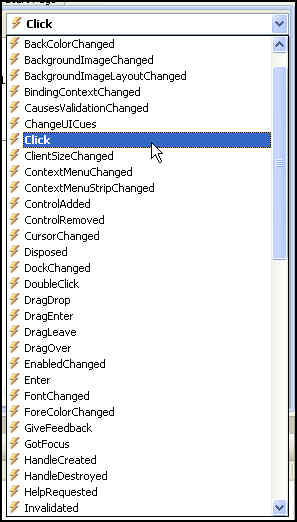
    After the new object has been declared with events, it appears in the Object drop-down list box in the class module, and you can write event procedures for the new object. (When you select the new object in the Object box, the valid events for that object are listed in the Procedure drop-down list box.)

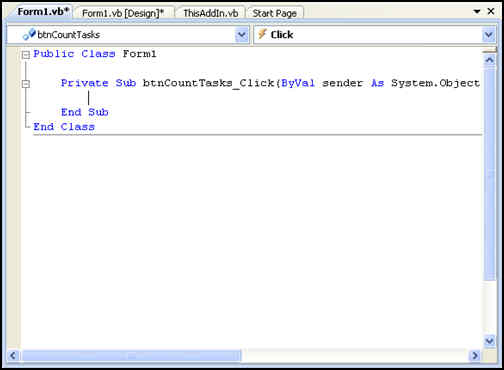
    Writing the procedure is similar to writing any macro. The image below shows a simple example using the ProjectBeforeTaskChange event.

    Note that NewVal holds the value that the user has input. The original value can still be referenced in the standard way (t.Name). The code to cut and paste is shown next.

    Public WithEvents App As Application

    Private Sub App_ProjectBeforeTaskChange(ByVal t As Task, _
    ByVal Field As PjField, _
    ByVal NewVal As Variant, _
    Cancel As Boolean)

    If Field = pjTaskName And NewVal = "foo" Then
    MsgBox ("you can not change the name to foo")
    MsgBox ("The old name was " & t.Name)
    Cancel = True
    End If

    Note that a space followed with an underscore is used to break a single line of code. This is called a line continuation and I use it to keep code readable when there is a long line. Now that you have written the code, there is one final step to undertake before using it. Before the procedures will run you must connect the declared object (in this case the one we called "App") in the class module with the Application object.
    It sounds complicated, but it is really rather simple. First we declare a new object based on the class module. In this case our class module is named TEvent.
    Code to do this would be something like:

    Dim X As New TEvent

    Now that we have this object we need to initialize it. Basically we need to tell it what the "App" is.

    We do this with the following code:
    Set X.App = Application

    After you run the InitializeApp procedure, the App object in the class module points to the Microsoft Project Application object, and the event procedures in the class module will run when the events occur.
    Most of the time you will want to do the initalization when your project opens so the events will work from the start, but you can put this information in any typical module which holds some of your macros.
    The screenshot below shows what it would look like if we want it to initialize when the project file opens.

    This example shows how events can be in a specific project file. You can also have this code in the global.mpt file so that things occur whenever you open Project as an application. The Project_Open event is also useful to distribute macros or other standard formatting. For example, you could have a Project_Open macro which sets up an environment for you (copying views tables etc.) using the organizer. When a user opens the file, those items could be copied into their global.mpt file. (Note: You might notice this is familiar. That is because I'm porting the material from my old Microsoft Project Macros website to this one bit by bit so that everything can be found in one place)

    November 11, 2005

    MS Project VBA Programming - Writing project properties to a file

    Microsoft Project files have a couple of different types of properties. The first are the "BuiltinDocumentProperties" which Project inherits from the Office Suite (Word, Excel, Access ...). These properties describe things like author, title, subject, creation date and the like. The second are the CustomDocumentProperties which are specific to Project. You can also create your own custom properties as well. The custom properties can be used to report cost, duration, start and finish dates of the project and a multitude of other interesting items.

    One problem that this causes is that it can sometimes be difficult to know what properties are being used in a specific file. To report them out and to give a simple example of writing to a text file I put together a macro which loops through all of them and writes them to a file. Even if you are not interested in the project properties this example illustrates some of the more commonly required programming techniques. I'll walk through the code with some comments and then offer the whole thing at the end if you want to cut and paste.

    Sub writemyproperties2()

    Dim MyString as String
    Dim MyFile As String
    Dim fnum as Integer
    Dim myIndex As Integer
    Dim myProj As Project
    Dim skipme As Boolean
    skipme = False
    Set myProj = ActiveProject

    Declaring the variables is optional in Project VBA, but it can help prevent some problems later. If a variable isn't defined then Project treats it as a "variant" which it needs to allocate more memory for. Project also makes some assumptions about how to treat a variant in different circumstances. In most cases it assumes correctly, but there is always the chance that it may make the wrong assumption so it is good practice to be explicit about your variables. Following this we set the initial values for some of the variables.

    The next step is to set up a file to write to. The next bit of code sets the file name and then uses the FreeFile() method to create a file. We open the file to write to it. We choose to open the file "for output". This allows us to write to it. The other possible modes are "for input" which would allow us to read data from the file and "for append" which appends data to the file. This last mode is useful for logs.

    MyFile = "c:\" & ActiveProject.Name & "_properties.txt"
    fnum = FreeFile()
    Open MyFile For Output As fnum

    Once we have created and opened the file we can write to it. In the "for output mode we do this with a "Write" statement. First we write a line as a header and then a blank line. Each "write" statement creates a new line. The comma is required.

    Write #fnum, "Built In Properties"
    Write #fnum,

    Now we use a "For...Next" loop to go through all the properties. Because there are some gaps in the numbering of the properties, the macro would fail when it hits gaps in the sequence. We solve this by putting in an error handler. When the code errors then it goes to the code which we want to execute "On Error"

    For myIndex = 1 To myProj.BuiltinDocumentProperties.Count
    skipMe = False
    On Error GoTo ErrorHandler
    MyString = (myIndex & _
    ": " & _
    myProj.BuiltinDocumentProperties(myIndex).Name & _
    ": " & _
    myProj.BuiltinDocumentProperties(myIndex).Value)
    If skipMe = False Then
    Write #fnum, MyString
    End If
    Next myIndex

    You can see that each loop through will write the property number, the name and the value of the property. You may be wondering why the if...then" statement is there. I include it because of the way the errors are handled. Our error code is very simple. It just resumes on the next statement. Since the next statement writes a line to the file it would result in re-writing the previous property again, so we add a line to the error handler which sets skipMe to true and then we do not write the property.

    From here the code for the custom document properties is the same.

    Write #fnum, "-----------------------------------------------"
    Write #fnum,
    Write #fnum, "Custom Properties"
    Write #fnum,
    For myIndex = 1 To myProj.CustomDocumentProperties.Count
    skipMe = False
    On Error GoTo ErrorHandler
    MyString = (myIndex & _
    ": " & _
    myProj.CustomDocumentProperties(myIndex).Name & _
    ": " & _
    myProj.CustomDocumentProperties(myIndex).Value)
    If skipMe = False Then
    Write #fnum, MyString
    End If
    Next myIndex

    We need to close the file after this.

    Close #fnum

    And finally we have the code to handle errors and end the procedure.

    ErrorHandler:
    skipMe = True
    Resume Next
    End Sub

    Here is the complete macro to cut and paste

    Sub writemyproperties2()
    'This macro exports all the built-in and custom project properties
    'to a text file. It lists the index of the property, the name and the value.
    'It demonstrates the use of a simple error handler to skip the errors that
    'occur when a property is not defined or used.

    'Copyright Jack Dahlgren, Nov 2005

    Dim MyString as String
    Dim MyFile As String
    Dim fnum as Integer
    Dim myIndex As Integer
    Dim myProj As Project
    Dim skipme As Boolean

    Set myProj = ActiveProject
    skipMe = False

    'set location and name of file to be written
    MyFile = "c:\" & ActiveProject.Name & "_2properties.txt"
    'set and open file for output
    fnum = FreeFile()
    Open MyFile For Output As fnum
    'write project info and then a blank line
    Write #fnum, "Built In Properties"
    Write #fnum,

    For myIndex = 1 To myProj.BuiltinDocumentProperties.Count
    skipMe = False
    On Error GoTo ErrorHandler
    MyString = (myIndex & _
    ": " & _
    myProj.BuiltinDocumentProperties(myIndex).Name & _
    ": " & _
    myProj.BuiltinDocumentProperties(myIndex).Value)
    If skipMe = False Then
    Write #fnum, MyString
    End If
    Next myIndex
    Write #fnum, "-----------------------------------------------"
    Write #fnum,
    Write #fnum, "Custom Properties"
    Write #fnum,

    For myIndex = 1 To myProj.CustomDocumentProperties.Count
    skipMe = False
    On Error GoTo ErrorHandler
    MyString = (myIndex & _
    ": " & _
    myProj.CustomDocumentProperties(myIndex).Name & _
    ": " & _
    myProj.CustomDocumentProperties(myIndex).Value)
    If skipMe = False Then
    Write #fnum, MyString
    End If
    Next myIndex
    Close #fnum

    ErrorHandler:
    skipMe = True
    Resume Next

    End Sub

    November 17, 2005

    Microsoft Project Tip - Formulas and the IIF statement

    IIF(immediate if) statements are one of the most commonly used functions in ms project formulas. An IIF statement is basically a condensed version of the "If ...Then .. Else" statement which is often used in programming. The iif statement takes three arguments:

    IIf( expression, truepart, falsepart )

    The first is the expression you want to evaluate. It needs to be constructed so that it has a true or false answer so it is commonly used to compare vs. a particular value. (see this article for comparing with "NA" ). What the iif statement does next is dependent on whether the result is true or false.

    If the expression is true then the truepart is returned. This sounds quite simple and can be very simple. You could return something like a text value or a number. However, the power of the iif statement is that the truepart can be another expression, even another iif statement. This allows you to construct and test many parameters in a single formula.

    If the expression is false then the falsepart is returned. Like the truepart it can be an expression or set of nested expressions.

    The difficult part of constructing a good nested iif statement is to put the tests in the correct order. Once the statement follows a path to the end, any other ends are not evaluated. The second limitation is that custom field formulas are limited to 256 characters so be economical with your text.

    The IIF statement is also available in Excel for cell formulas, but in more recent versions of Excel (XP, 2003, perhaps 2000) it is called the If statement with exactly the same syntax.

    November 18, 2005

    How to open MS Project from Excel

    I have a number of examples of exporting to Excel from MS Project (exporting task hierarchy and exporting monte carlo simulation data) but many people want to do just the opposite. They want to open a Project file from Excel. So here is a short example which shows opening the Project application from excel, creating a new file and adding a task.

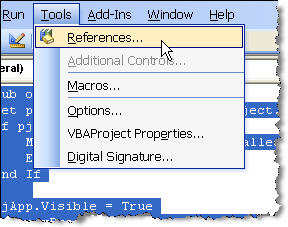
    The first thing that you need to do is to set a reference to the Microsoft Project Object Library. To do this go to 'the "Tools Menu" in the Visual Basic Editor (hit ALT+F11 to get there from Excel).

    reference-menu.jpg

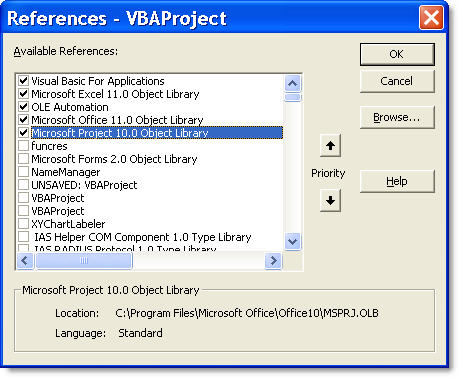
    This should bring up a dialog box showing all of the available libraries. You will probably have to scroll down a bit to find the project library. Here you can see that I'm using Project 2002 as it is version 10.

    setting-references.jpg

    Once you have set the reference the code is pretty simple:

    Sub openMSProjectFromExcel()
    Set pjApp = CreateObject("MSProject.application")
    'this checks to see if a valid object has been created. If not it pops up
    'a warning and then quits. Users without Project installed will see this message.
    If pjApp Is Nothing Then
    MsgBox "Project is not installed"
    End
    End If
    'now that we have an application we make it visible
    pjApp.Visible = True
    'we add a new project Set newProj = pjApp.Projects.Add
    'we set the title property (you can do whatever you want here.
    newProj.Title = "My New Project"
    'we make the new project the active project
    Set ActiveProject = newProj
    'and finally we add a new task to the project
    newProj.Tasks.Add ("My First Task")
    End Sub

    Obviously you will want to do more where this leaves off, but it should be enough to get you started with using Project from Excel.

    December 7, 2005

    More about working with the tasks collection

    I've mentioned before that when looping through a collection of tasks in Project that there are a couple of holes you can fall in. This note gives an example of another problem you might run into and describes how to combine tests. The first problem is encountering a blank line. Many people insert blank lines in their project files to make the table easier to read, however when project references a task which is blank it will give an error. The easy way to do this is to test for it with an if .. then statement.

    If your original code was something like this:

    Sub AllTasksLoop()
    For Each Task In ActiveProject.Tasks
    'do something
    Next Task
    End Sub

    You would simply add a test to see if the task really exists.

    Sub AllNonBlankTasks()
    For Each Task In ActiveProject.Tasks
    If Not Task Is Nothing Then
    'do something
    End If
    Next Task
    End Sub

    Another thing you might want to do is to eliminate external tasks. These are a sort of "ghost" task and don't have all of the information or properties of a real task. They merely point to the project file which has the real task. We can filter them in a similar way.

    Sub AllNonBlankInternalTasks()
    For Each Task In ActiveProject.Tasks
    If Not Task Is Nothing Then
    If Not Task.ExternalTask Then
    'do something
    End If
    End If
    Next Task
    End Sub

    Now, you might think, "Why do I need two if statements? Can't I combine them? , but you can't. If the task is a blank task, then it will cause an error when it is checking the second condition. Blank tasks do not have the .ExternalTask property so the check for blank tasks always must come first on its own line. You CAN combine checks for summary tasks on the same line as for external tasks. This is commonly done when you are summing values from tasks. Since the summary task often has the sum of the tasks below it, summing and including it will give you an incorrect answer. Combining the two conditions with a booleanOR will do the trick.

    Sub AllNonBlankInternalIndividualTasks()
    For Each Task In ActiveProject.Tasks
    If Not Task Is Nothing Then
    If Not (Task.ExternalTask Or Task.Summary) Then
    MsgBox Task.Name
    End If
    End If
    Next Task
    End Sub

    January 17, 2006

    More on how NOT to skip NOT blank tasks in MS Project Macros

    Clayton Scott read my post on skipping blank lines (also known as blank tasks) in project by using the statement

    If Not Task is Nothing Then...

    He suggested that rather than using a negative that we use:

    If Task is Nothing Then
    Next Task
    End If

    but the problem is that the Next Task within the If..Then statement is not recognized correctly by the compiler and the code won't compile. Clayton's intent was to simplify the code and remove the confusing Not from the statement. I think it is possible to remove the Not but this would require implementing a counter of some sort or using Onerror, both of which would not lead to greater simplicity.

    So it looks that for the time being we are stuck with using If Not Task is Nothing.

    I'd like to say thanks to Clayton for trying to point out possible improvements though. Comments are always welcomed.

    March 1, 2006

    Project 2007 vs. Excel 2007

    This post about multi-colored data bars
    Microsoft Excel 12 : Conditional Formatting Trick 1 – Multi-Coloured Data Bars in the upcoming Excel 2007 is making it look even better for the small time scheduler or as a credible reporting/analysis engine for project data. I can envision a number of macros which might benefit from this feature.

    March 2, 2006

    Free Monte Carlo Simulator For Microsoft Project - Want to help out?

    I don't think I've mentioned it here, but if you are interested in Monte Carlo Simulation for MS Project (and who isn't?!) then you can download my quick and dirty simulator here: Microsoft Project Monte Carlo Simulator
    Since it is just a VBA macro, the source is there for all to see and modify. Have at it! And if you make any improvements, please consider sharing them with me and others. Any updates will be posted with acknowledgement to the contributor. I've had this version up for a couple of years now and will keep it up until this function comes built into Project.

    April 13, 2006

    Extremities

    An interesting rebuttal of the Agile Manifesto here:
    Burningbird » Technology is already Extreme
    The points about belief, group behavior and diversity are worth investing a few minutes to digest. Fortunately it is leavened with one-liners like this:

    "The tech equivalent of The Beach Boys"

    It dovetails nicely with Glen's latest post on evidence.

    When am I ever going to write anything thoughtful again?

    May 2, 2006

    Adding tasks to MS Project using C#

    Eric Landes has a brief code snippet on using C3 to automate project here:Corporate Coder : Project 2003 Adding Tasks via C#

    All I can say is that C# is slightly less than elegant in the way it handles optional parameters.
    For what an idea of what I'm talking about, here is how to invoke FileOpen:
    m_ProjectProApp.FileOpen ( "MyProjectName", missingValue, missingValue, missingValue, missingValue, missingValue, missingValue, missingValue, missingValue, missingValue, missingValue, PjPoolOpen.pjDoNotOpenPool, missingValue, missingValue, missingValue, missingValue);
    Just a bit awkward, wouldn't you say?

    May 24, 2006

    Changing Cell background color in Microsoft Project

    Yes, along with multiple undo, the ability to format cells with a background color and pattern will be here in Project 2007 which has an expected release date sometime in early 2007. The Beta2 release was yesterday and a new SDK was released (find it here).

    I'll be working through this stuff over the coming weeks, but some of the best things are the simple ones. For example this bit from the table of VBA Object Model Changes:

    Cell, CellColor property, CellColor as PjColor

    New for Cell object. Background color of the cell. In Project 2003 as GroupCriterion property only.

    Cell, FontColor property, FontColor as PjColor
    New for Cell object. Foreground color of the cell font. In Project 2003 as GroupCriterion property only.

    Cell, Pattern property, Pattern as PjBackgroundPattern

    New for Cell object. Background pattern of the cell. In Project 2003 as GroupCriterion property only.

    Global, Application Font method Boolean Font(Optional Variant Name, Optional Variant Size, Optional Variant Bold, Optional Variant Italic, Optional Variant Underline, Optional Variant Color, Optional Variant Reset, Optional Variant CellColor, Optional Variant Pattern)

    Changed: added parameters CellColor and Pattern.

    See that? Cells have colors and patterns. Welcome to 1995! Now to install the beta and see if we are still limited to 16 colors...

    PS: Don't take the 1995 comment too harshly. From the other new things in Project Server 2007 it is clear that the team has focused on solid improvements to functionality

    October 19, 2006

    Microsoft Project VBA the Rod Gill way

    Rod Gill has put out a new book which covers most of what you need for Microsoft Project VBA programming. As far as I know it is the only book about VBA that I know of. The last edition of Tim Pyron's "Using Microsoft Project" was so full that the VBA chapters were moved to an addendum on the web so it is great to see a book dedicated to just VBA. The book moves from the most basic concepts through creating some useful macros and userforms. It even offers an updated version of something very similar to my "Trace" macro. At the end of each chapter there are some example questions/problems which would make this book very useful if you are teaching VBA in a class. In the US the book was localized by Gary Chefetz and Dale Howard of MSProjectExperts and if you are familiar with their Project Server books you will be happy to see that the same high quality is embodied here. Highly recommended for anyone who wants a solid grounding in Microsoft Project VBA. Here is a link to the book at Amazon.

    While you are at it check out Gary and Dale's Project Server Books: